The buyer's request list, answered in the room
Buyers do not open with questions, they open with a list: sixty or two hundred numbered requests, usually in a spreadsheet. Bring their list into the room as it is, answer each line with a document or a reply, and let them watch it close out instead of swapping spreadsheet versions by email.
-
Open Requests from the room
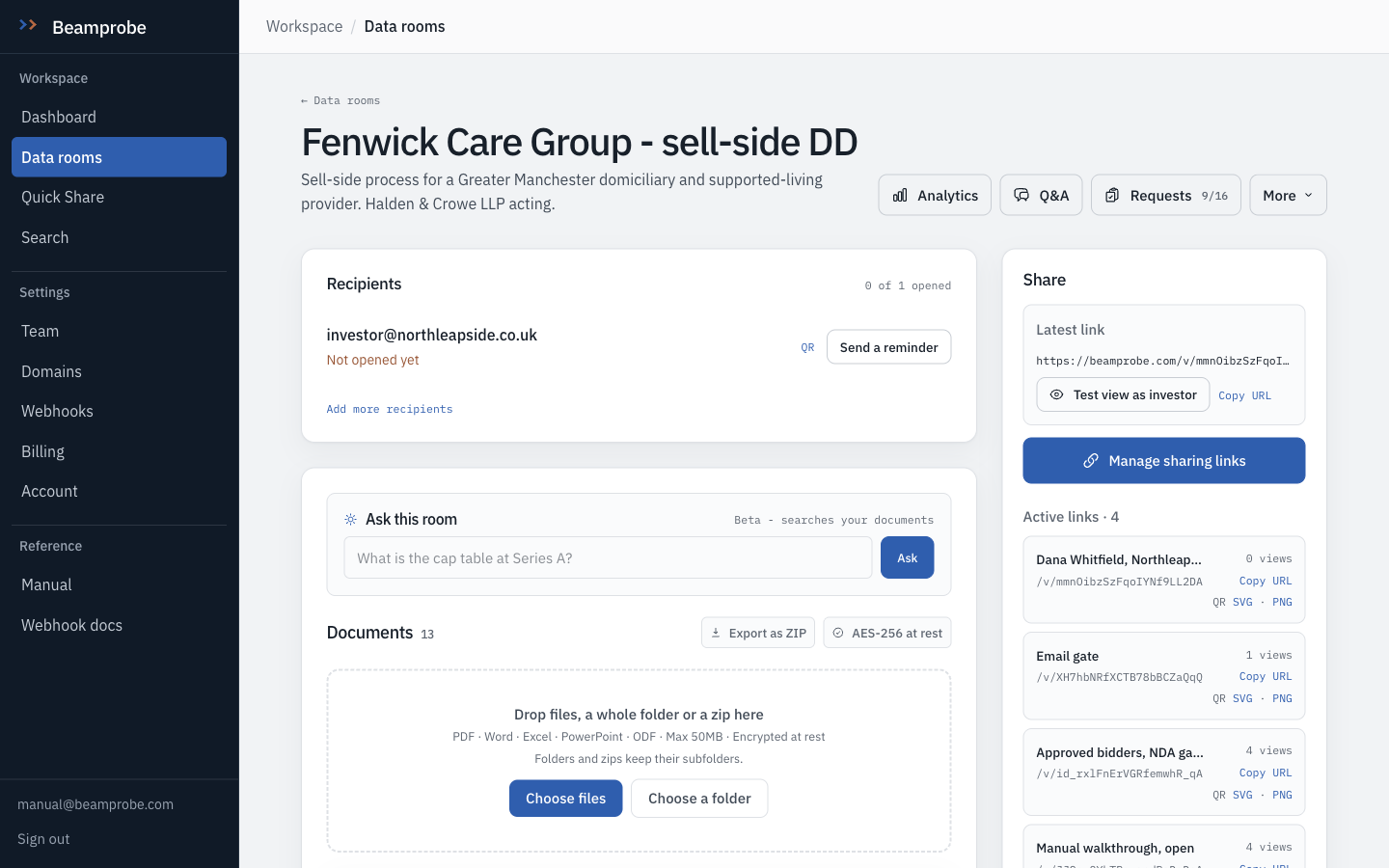
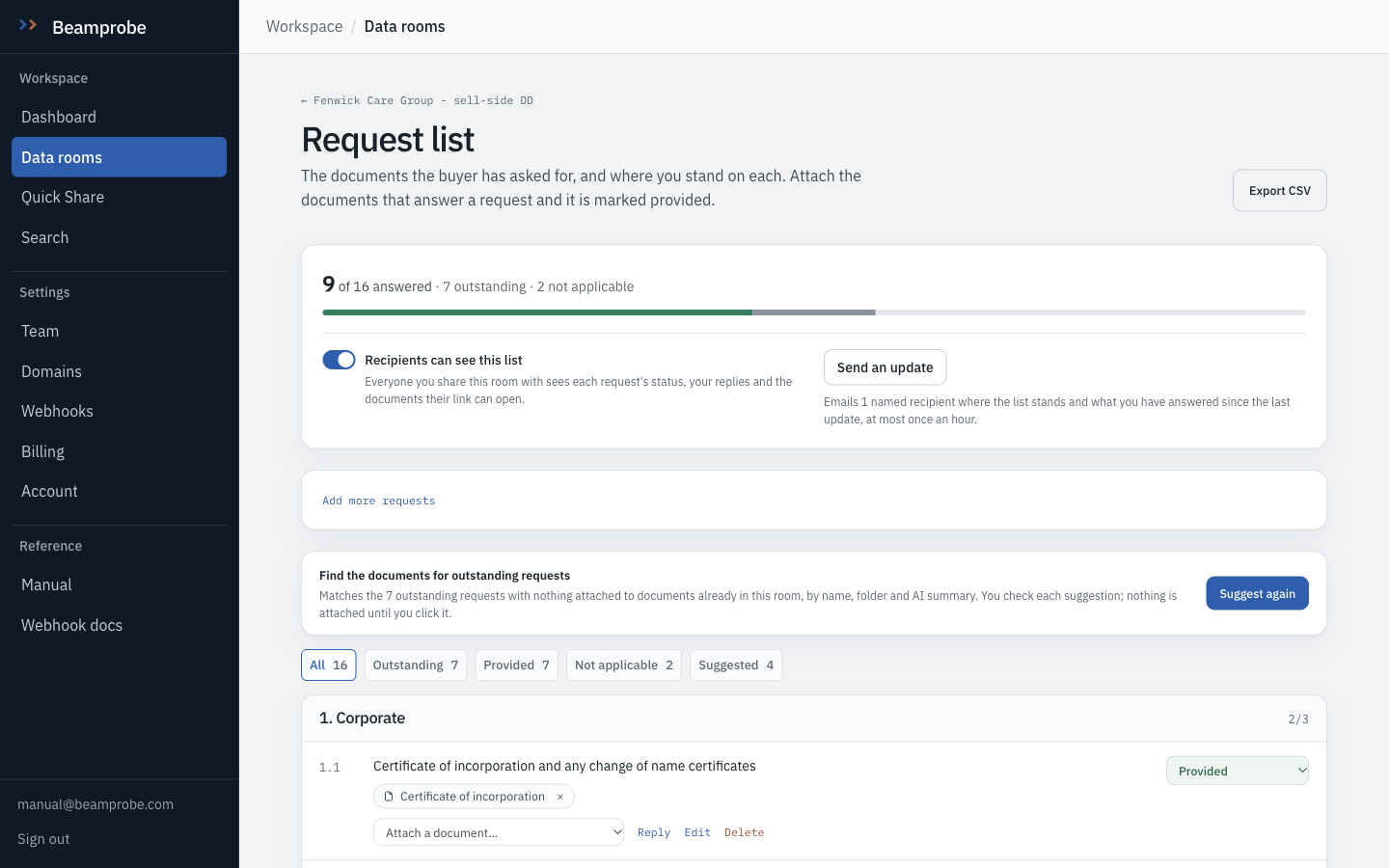
Requests sits beside Analytics and Q&A at the top of every room. Once a list exists the button carries the score, answered over total, where answered means provided or marked not applicable. The list belongs to this room alone, and nobody you share it with sees it until you switch it on.
Watch It works on every plan, Free included. A list holds up to 500 requests.
-
Bring the buyer's list in as it is
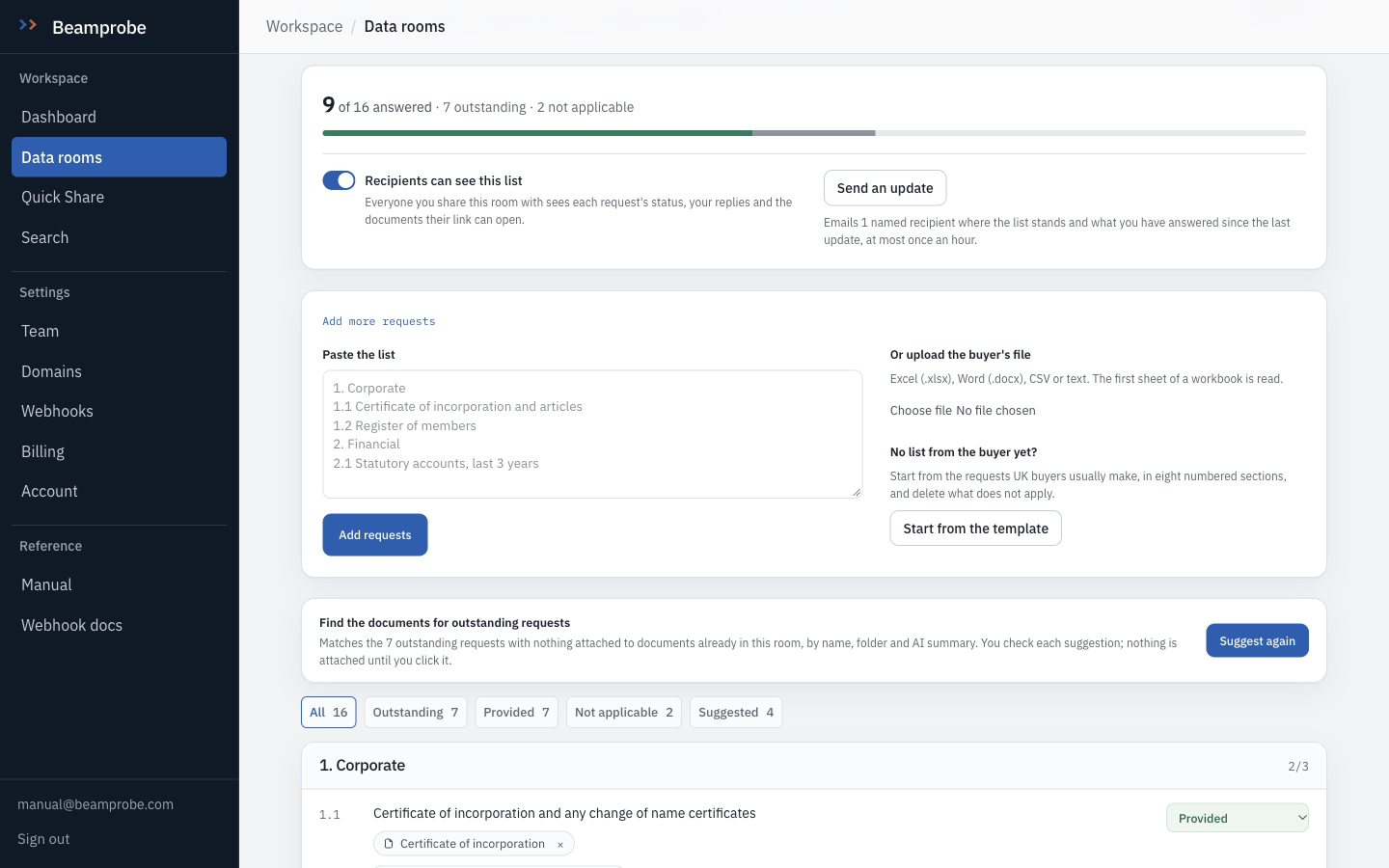
Paste the list, or upload the buyer's own file: Excel, Word, CSV or plain text, up to 5MB, and only the first sheet of a workbook is read. Numbered references and section headings are kept, so 2.3 stays 2.3 and sits under 2. Financial, and every answer can follow the buyer's numbering. On an empty list this panel is open; once there are requests it folds away under Add more requests.
Watch The import says how many requests it added. Check the sections and references read the way the buyer wrote them; Edit on any line puts one right.
Do this No list yet? Start from the template adds the requests UK buyers usually make, in eight numbered sections. Delete what does not apply before anyone sees it.
-
Attach the document that answers the line
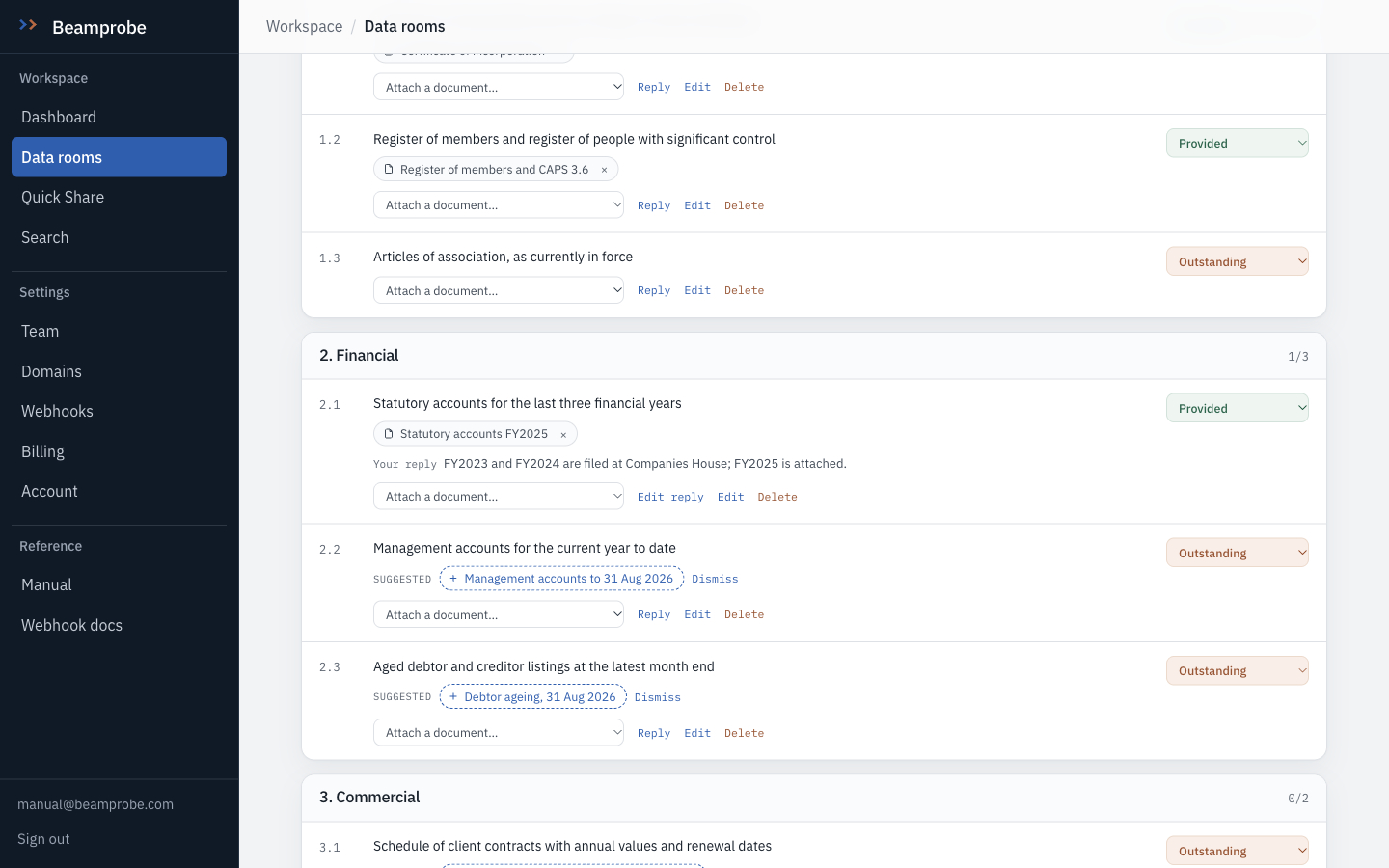
Attach a document picks from the documents already in the room, grouped by folder. The first document attached to an outstanding request marks it Provided. Nothing is copied or moved: the document stays where it is filed and the request points at it. The × on the chip takes it off again, and leaves the status where it was, so set it back if the request is open again.
Watch A recipient only sees an attached document their own link can open. Attachments outside a link are left off its view of the list, not named.
-
Let the room suggest the rest
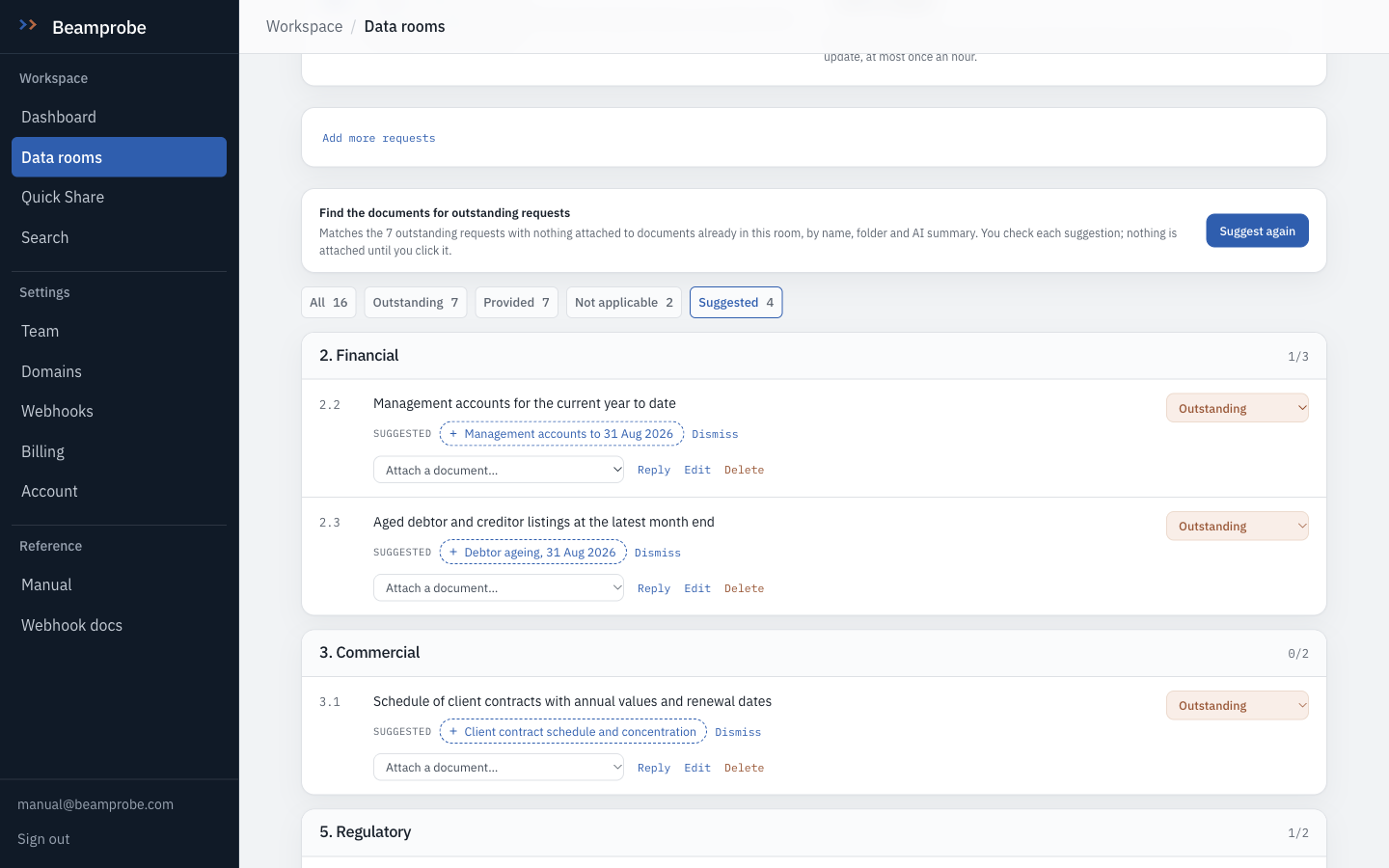
Suggest documents matches the outstanding requests with nothing attached against the room's finished documents, by name, folder and AI summary. Each match is a chip under its request, and the list switches to the Suggested filter. Click a chip to attach it, Attach all when a line has more than one, Dismiss to drop it. Nothing is attached until you click, and suggestions are shown to you, never to a recipient.
Watch A suggestion matches names and summaries, not what the request means. FY2025 accounts are a full answer to the last three years only if the other two are somewhere.
-
Not everything is a document
The status on the right is Outstanding, Provided or Not applicable, and you can set it by hand. Reply puts a line of text under the request, which is the right answer to tribunal claims when there were none, or to contracts you will only release at confirmatory stage.
Do this Write the reply a buyer's lawyer would quote. None brought or threatened in the period says more than N/A.
-
Show the list to the other side, when it is ready
Recipients can see this list is off until you switch it on. On, everyone you share the room with sees each request's status, your replies and the documents their link can open, inside the room.
Watch Every link sees every request and every reply. Only attachments are filtered per link, so a reply is not the place for something one bidder must not read.
-
What the buyer sees
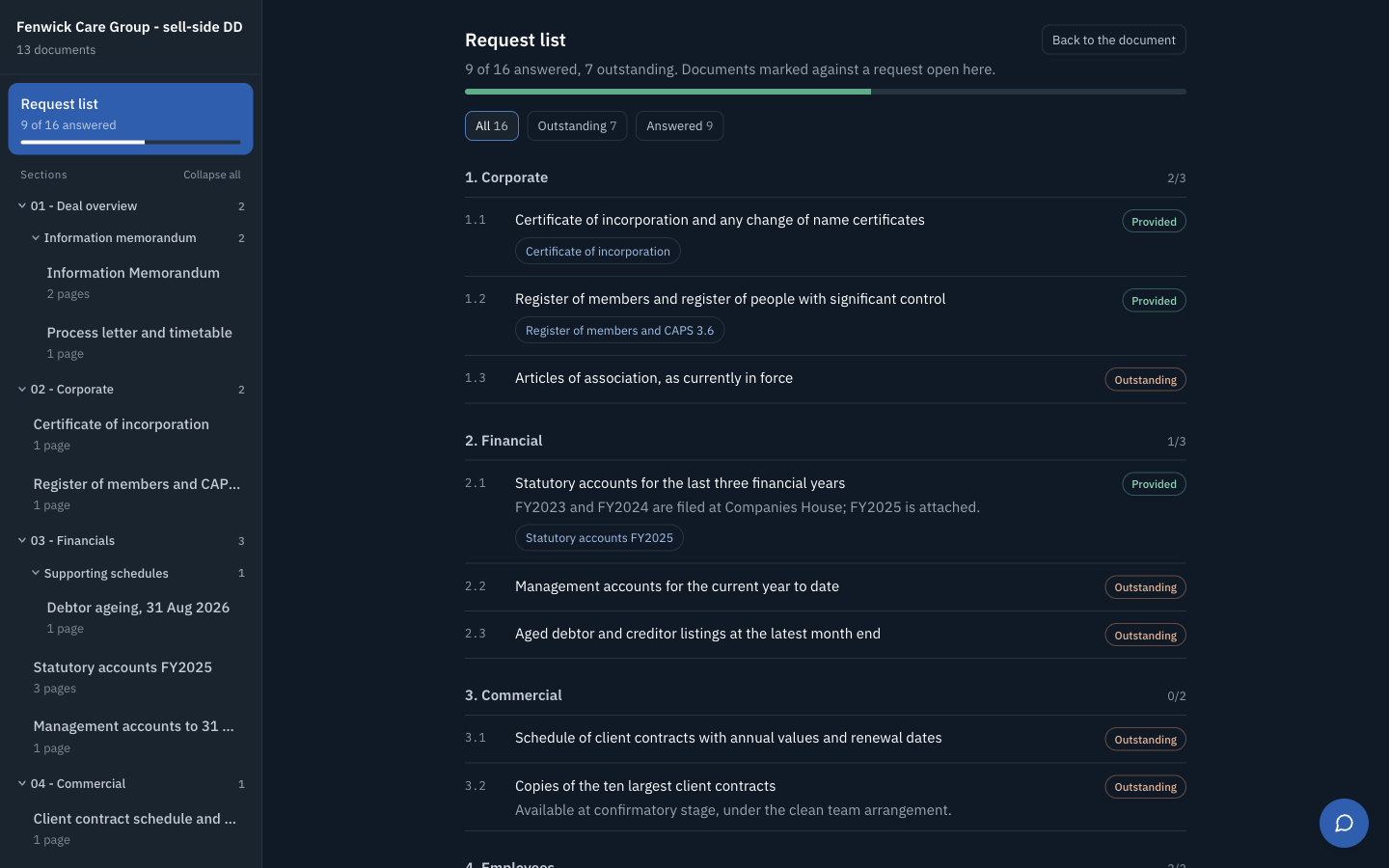
A Request list entry sits at the top of the contents rail, with the score and a bar. It opens the list in the main pane, filtered by All, Outstanding or Answered, and each attached document opens from the request it answers. The buyer can read the list but not change it, so a new request still arrives by email and you add it.
-
Send an update when there is news
Send an update emails each named recipient where the list stands and what you have answered since the previous update. It goes only when you press it, at most once an hour per room, and no address gets more than three a day.
Watch Named means a per-recipient link that still works. A public link has no name on it, so it gets no email.
- □ Every request is Provided, Not applicable or has a reply saying when
- □ Sections and references match the buyer's own numbering
- □ No reply says something one bidder must not read
- □ The list was switched on for recipients deliberately, not left on from a test
- Export CSV, top right of the list, writes the reference, section, request, status, your reply, the documents attached and the date each was answered. Keep it in the deal file, or send it to a buyer who wants their own spreadsheet back.
- Add one request, at the foot of the list, takes a reference, a section and the request, for the line that arrives by email after the list went in.
- Delete the whole list removes the requests and nothing else. The documents stay in the room.