Two-factor sign-in for your account
Two-factor sign-in on every plan, switched on and off from the Account page, with recovery codes for the day the phone is lost. A data room is only as safe as the password in front of it.
-
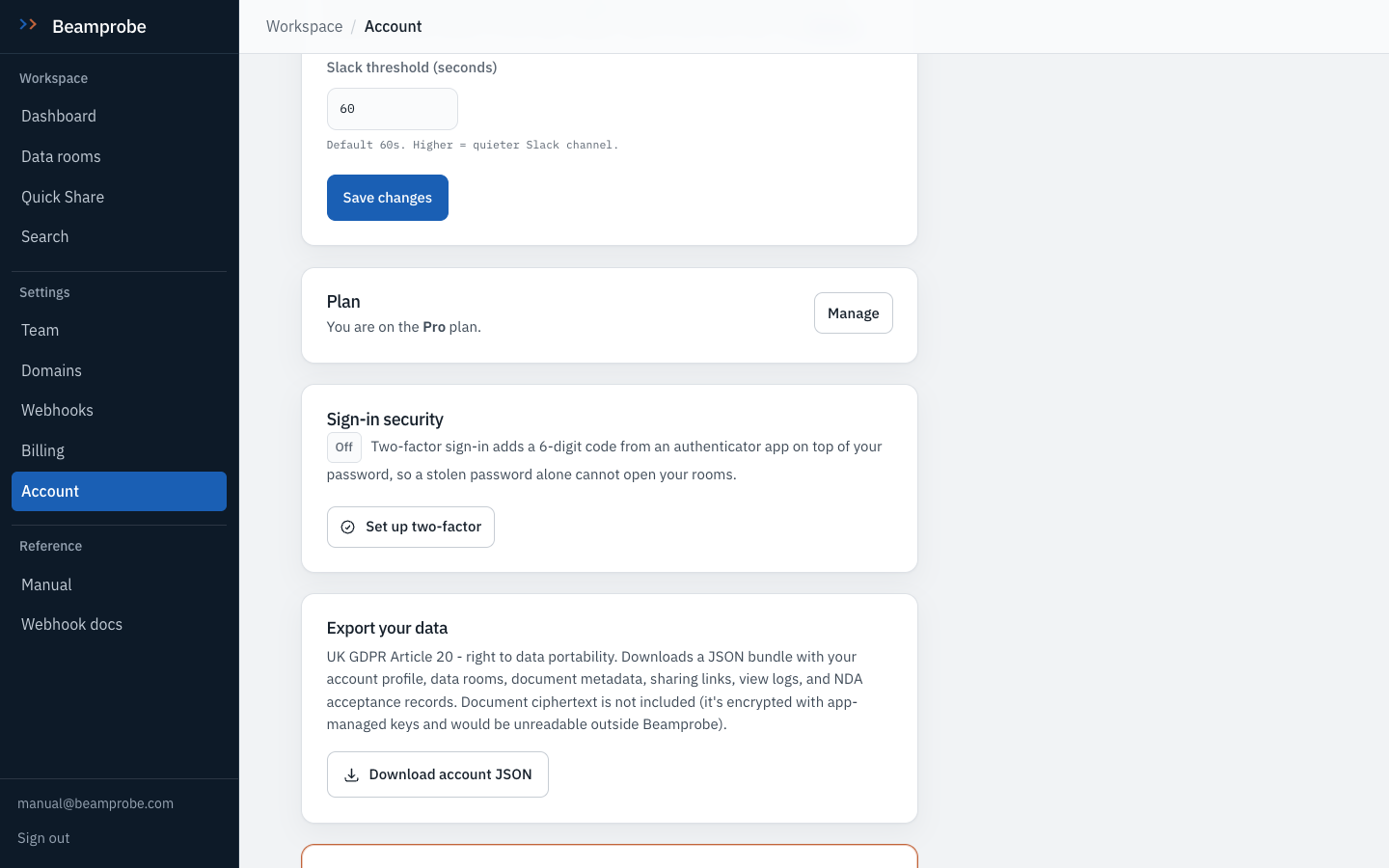
Sign-in security, on the Account page
Account, in the sidebar, has a Sign-in security panel. It says whether two-factor sign-in is on and, once it is, how many recovery codes are left. It holds the buttons to set it up, switch it off and forget remembered devices.
Watch Forget remembered devices after a laptop is replaced or lost. Each device then asks for a code at its next sign-in.
-
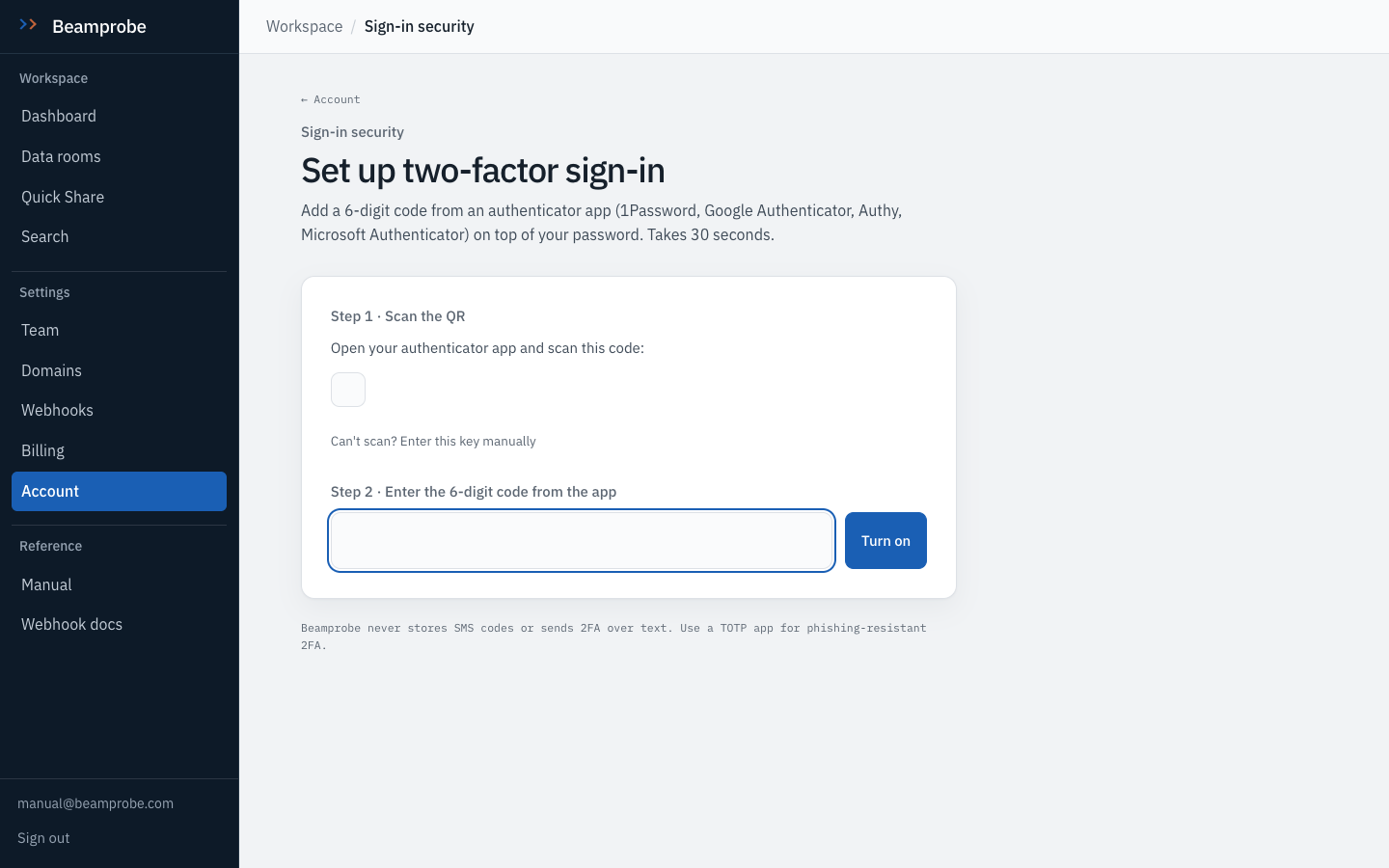
Scan the code, then confirm it
Set up two-factor shows a QR code for an authenticator app, with the key written out for apps that cannot scan. Type the six-digit code the app shows to confirm, and two-factor sign-in is on from the next sign-in. A device can be trusted for 30 days so it does not ask every time.
Watch Save the recovery codes shown next somewhere other than the phone. Each works once, and they are the way back in if the phone is lost.
- □ Two-factor sign-in is on for every account that can open a live room
- □ The recovery codes are saved away from the phone
- □ Remembered devices were forgotten after a laptop was replaced